Waterpark Simulator Steam Deck Play Guide
Portable park management with Proton, readable UI, and realistic frame expectations.
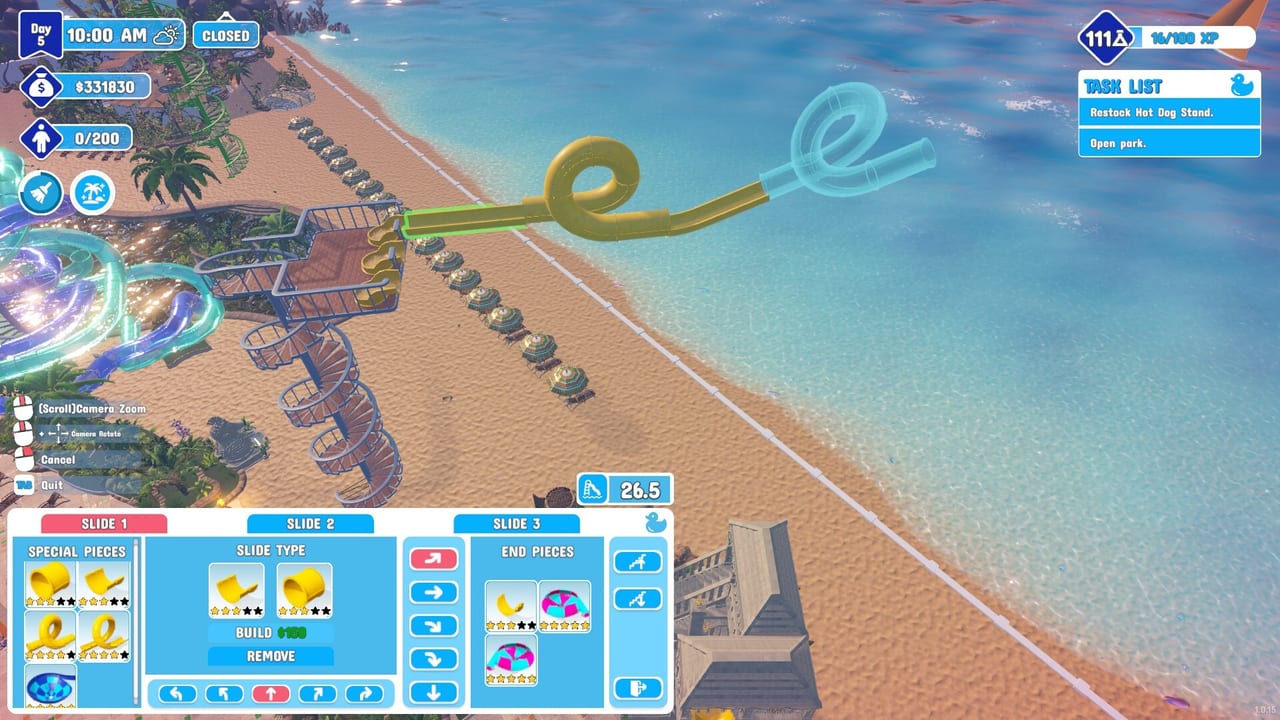
Steam Deck is a valid 1.0 platform—not a perfect one yet
Waterpark Simulator by CayPlay Studios launched version 1.0 on July 31, 2026 on Steam, PlayStation 5, and Xbox Series X|S at $12.99, with online co-op for 2–4 players, custom slides, Beach map space, night mode, diamond rating, security, mascots, and theme districts. Steam Deck owners can install the game through Steam and play the same management loop as desktop PC—tickets, mop routes, build mode, trash throws, and co-op nights—but portable hardware and Linux compatibility layers add extra tuning. CayPlay and Valve have not finished a dedicated full Steam Deck optimization pass as of the 1.0 window; community reports treat Deck play as workable with settings discipline, not as a locked 60 FPS showcase on maxed Beach parks.
This page covers Proton Experimental habits, UI scale comfort on a seven-inch screen, performance expectations during busy afternoons, verify files stability after patches, and honest notes that Deck-specific polish continues after launch. Pair it with PC Controls for the underlying keyboard verbs, Console Controls if you remap to gamepad-style layouts, System Requirements for hardware context, Getting Started once binds feel natural, and Troubleshooting when Proton or storage issues block a session.
Proton Experimental: the community default
Steam Deck runs Windows games through Proton. For Waterpark Simulator, many players report smoother boot, fewer shader hitches, and better long-session stability on Proton Experimental compared with older Proton builds—especially after 1.0 content patches that touch Beach assets, water rendering, and night lighting. Proton Experimental is not a magic fix; it is the compatibility layer the community most often recommends when default Proton stutters during build mode or co-op host loads.
Practical Proton steps:
- Open the game in Steam on Deck (or Steam desktop while managing the install)
- Properties → Compatibility → force Proton Experimental if the default layer misbehaves
- Launch once and let shaders compile—first Beach load can hitch; avoid judging performance mid-compile
- After a major CayPlay patch, repeat a short test open before a diamond grind night
- If crashes persist, verify game files (below) before hopping Proton versions randomly
Proton does not change gameplay rules: Always Run spirit still matters, bin arrows still face paths, and bracelet cheaters still need push intent. Learn those verbs on PC Controls even if you play with Deck controls.
Controls: trackpads, sticks, and optional remaps
Deck players usually pick one of two paths:
Steam Input gamepad profile. Treat the Deck like a console pad: left stick move, right stick look, hold interact for mop and hammer work, separate push/throw binding. Compare muscle memory with Console Controls action names rather than PC key labels.
Trackpad-as-mouse hybrid. Some managers prefer right trackpad for aim throws and build camera rotation, with left stick for walking. This mirrors desktop mouse precision but demands UI scale that keeps bin coverage rings readable.
Whichever path you choose, practice the high-stress verbs before open hour: fill a trash bag and throw, hold-mop a puddle chain, rotate a bin in build mode, push a cheater without dropping your tool. Co-op lobbies should call verbs, not hardware: “throwing bag,” “build mode,” “mopping spine”—see Multiplayer Co-op for role splits.
UI scale and readability on a small screen
Seven-inch panels punish tiny HUD text and subtle puddle shaders. Before you expand Beach frontage:
- Raise in-game UI scale or equivalent accessibility slider until ticket summaries and research prompts are readable at arm’s length
- Increase brightness slightly for night mode; dark Pirate corners hide mess on reflective decks (Night Mode and Weather)
- Avoid maxing resolution scale if frame time already dips—readable ground beats cinematic presets when bracelet scans matter (Tickets and Cheaters)
- Test build mode at the zoom levels you actually use; drone camera on a small screen overshoots easily
Deck play is still management sim first: if you cannot read the objective list or gate pass icons, fix UI before buying more props.
Performance expectations after 1.0
Honest expectations for post-1.0 Steam Deck sessions:
Starter and modest mid parks often run acceptably with medium-ish settings after shader warmup. Solo gate-and-mop loops are the friendliest test.
Beach map sprawl with multiple custom slides, dense theme props, and peak guest counts stresses CPU pathing and GPU water. Frame dips during flyer spam or co-op host peaks are common on Deck-class hardware—plan smaller spines and fewer simultaneous spectacle clusters (Beach Map Zones).
Night mode overtime adds lights and wet reflections. Light the circulation spine instead of flood-spamming every crate; overtime wages already punish sprawl (Night Mode and Weather).
Online co-op 2–4 feels best when the strongest stable machine hosts. If your Deck hosts, keep parks tighter and assign roles so four players are not all spawning build previews at once (Multiplayer Co-op).
CayPlay has signaled that full Steam Deck optimization work continues after the 1.0 ship. Treat current performance as “playable with discipline,” not as a finished Verified-style guarantee. Watch Steam news and community channels for Deck-targeted patches under Updates.
Settings levers that help on Deck
When frames dip during a rush:
- Lower shadows and effects before crushing resolution into unreadable puddles
- Cap frame rate for thermal stability in handheld mode
- Reduce view distance if Beach props pop aggressively on low VRAM
- Close heavy background apps; co-op voice on a phone beats fighting thermals mid-rush
- Shrink guest-facing spectacle temporarily while testing a new Proton build
Gameplay readability ties directly to Cleaning Loop success—you still need to see trash, water, and devil-icon guests.
Verify files, storage, and patch hygiene
SD card installs and interrupted downloads cause missing props or silent build failures. After a large 1.0 patch:
- Ensure adequate free space on internal or SD storage
- Steam → Waterpark Simulator → Properties → Verify integrity of game files
- Relaunch with Proton Experimental and run a five-minute open test
- If issues remain, note exact symptoms in Troubleshooting patterns—shader cache wipes, Proton swaps, and reinstall paths differ
- Re-read Updates before blaming Deck hardware for content changes
Keep the game on faster storage when possible; build mode and streaming park chunks feel better on internal SSD than on a slow card.
Co-op and community notes
Deck players join the same 2–4 player online sessions as PS5, Xbox, and PC friends. Mixed lobbies work when everyone speaks action names and respects host stability. Official community discussion lives on CayPlay channels and Discord invite links listed on Version 1.0 Overview and the Official Links Hub.
Common community tips beyond Proton Experimental:
- Run shorter park sessions handheld; docked mode helps thermals and readability
- Prefer role specialization over four generalists on one Deck host
- Delay Beach megaprojects until daytime ops are boringly stable (Getting Started)
- Do not expect housing or pets systems on Deck—or any platform—until CayPlay ships later updates; the confirmed next community-voted focus is Lazy River, not a Deck patch by itself (Lazy River 1.1 Preview)
Steam Deck pre-session checklist
- Force Proton Experimental if default Proton stutters
- Set UI scale and brightness for gate, objectives, and night readability
- Verify game files after major patches
- Warm up shaders with a short solo open
- Enable sprint behavior that avoids guest knockdowns (Always Run spirit on PC; console-style toggles if remapped)
- Plan a smaller Beach spine until CayPlay finishes Deck optimization
- Assign co-op roles and pick a strong host for crowded nights
- Keep Troubleshooting and System Requirements bookmarked
Steam Deck is a legitimate way to run Waterpark Simulator 1.0 on the go—especially for solo ops sessions and co-op nights with realistic park size—but it rewards Proton discipline, readable UI, and patience while full Deck optimization continues post-1.0. Master the same verbs as PC, size parks to portable hardware, and return to the Controls Hub when cross-play friends need a shared vocabulary.
Frequently Asked Questions
Quick answers to the most common questions.
Which Proton version should I use on Steam Deck?
Many players recommend Proton Experimental for Waterpark Simulator after 1.0 patches. Force it in Steam compatibility settings if the default layer stutters or crashes.
Is Waterpark Simulator fully Steam Deck Verified at 1.0?
Not as a finished optimization pass. CayPlay continues Deck-specific polish after launch; community play is workable with Proton Experimental and sensible settings.
How do I make the UI readable on Deck?
Raise in-game UI scale, tune brightness for night mode, and avoid max resolution scale if frames already dip during busy Beach afternoons.
Can Steam Deck host 2–4 player co-op?
Yes, but prefer the strongest stable machine as host. Keep parks smaller on Deck hosts and split gate, cleaning, food, and security roles.
What should I do after a patch breaks props or builds?
Verify game files in Steam properties, relaunch with Proton Experimental, and check Troubleshooting and Updates pages before reinstalling.
Does Steam Deck get different content than PC?
No. Deck runs the same 1.0 feature set through Steam. Performance tuning differs; future Lazy River and other updates ship to all Steam platforms together.